
Power BI on Digital Signage: Auto-Refresh Dashboards on Any TV
Your team already built the Power BI dashboard. PiSignage puts it on the screens people actually look at: live, page by page, with no PC and no expired logins.
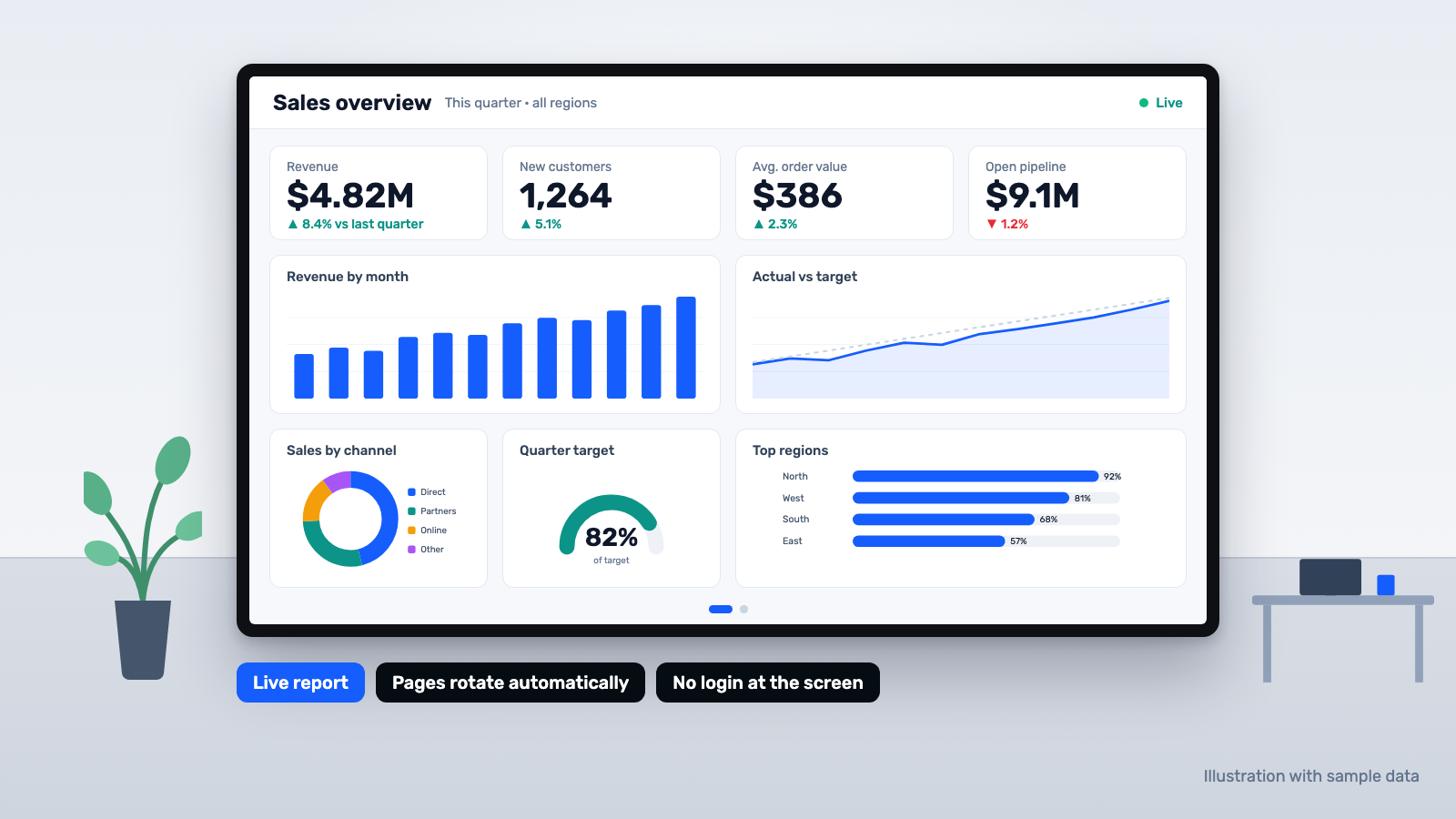
Your analysts spent weeks building the perfect Power BI dashboard. Then it sits in a browser tab that a handful of people open once a week.
Put it on the wall instead. With PiSignage, a live Power BI report plays on any TV, with no PC behind it and no one logging in at the screen. The sign-in refreshes itself in the background, pages rotate on their own, and the report shares the screen time with your announcements and videos.
Why not just run Chrome in kiosk mode?
Most IT teams try a mini PC with Chrome in full screen first. It works for a week or two. Then someone has to keep fixing it.
| Chrome kiosk on a mini PC | PiSignage | |
|---|---|---|
| Sign-in | The browser session expires and the TV shows a login page | Connect once for the account; the session token is refreshed automatically |
| Upkeep | OS updates, pop-ups and reboots need someone at the screen | Managed from your browser: screen status, snapshots and TV on/off, from anywhere |
| Content | One browser tab | Power BI in a playlist with announcements, safety videos and schedules |
| When it fails | A blank or stuck screen until someone notices | A clear message on screen and a retry every 5 minutes |
Where Power BI screens make a difference
- Sales floors: targets, pipeline and leaderboards the whole team can see.
- Factories and warehouses: output, downtime, safety days and shift KPIs on the shop floor.
- Contact centres: queue length, wait times and service levels.
- IT and operations rooms: uptime, tickets and incident dashboards.
- Lobbies and reception: public numbers such as energy savings, visitor counts or community impact.
What PiSignage does with your report
- Auto-refreshes the sign-in. The screen loads the live report from Power BI and keeps its session token refreshed in the background, so it never falls back to a login page.
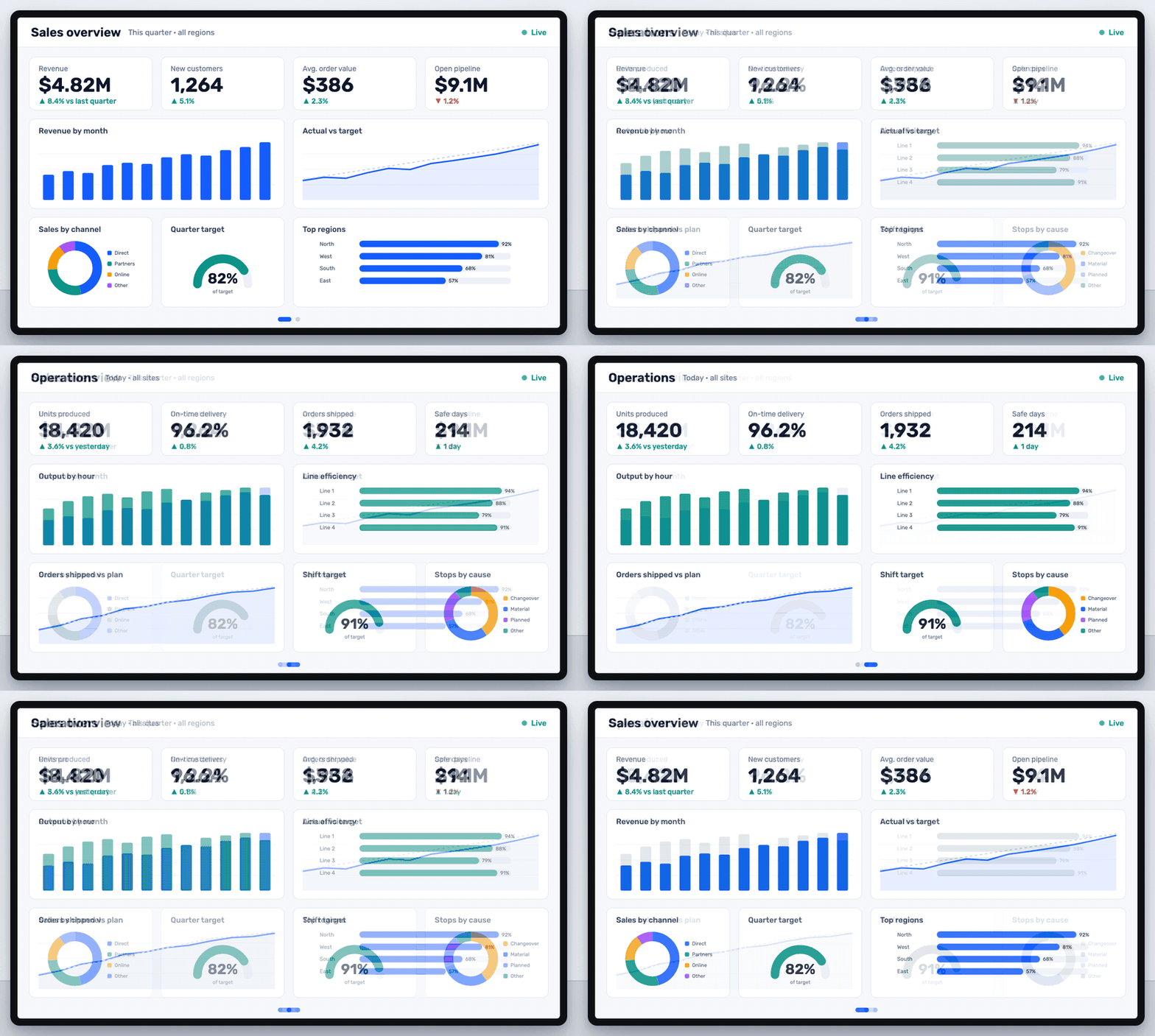
- Picks the pages for each screen. Click Load pages, tick the pages you want, and the screen shows only those. No need to split one report into several.
- Rotates pages automatically. Set a page duration and the screen cycles through the selected pages in the order you ticked them.
- One report, many screens. Add the same report several times, each with different pages: a "Sales" screen and an "Operations" screen from one dashboard.
- Plays with everything else. A Power BI report is an asset like an image or video, so it goes into playlists and schedules next to your announcements, videos and weather.
- Recovers on its own. If a report can't load, the screen shows a clear error message instead of going blank, and retries every 5 minutes. Fix the cause and the screen comes back by itself.
What hardware do you need?
You don't need a PC. A small player plugs into the TV's HDMI port, or the TV runs the app itself. If a PC is already connected to the screen, you can use that too.
- Raspberry Pi 5 or Pi 4 (recommended). Handles web content and 4K, drives two displays, and can switch the TV on and off on a schedule. Raspberry Pi digital signage software
- Amazon Signage Stick. A plug-and-play HDMI stick built for signage. Pick PiSignage from its CMS list. PiSignage on the Amazon Signage Stick
- Android TV and Android boxes. Install the PiSignage app from Google Play.
- A Windows PC, Chromebook or Linux PC you already have. Open the PiSignage browser player in Chrome. Nothing to install, and PiSignage still handles the sign-in, the page rotation and the playlist.
Two things to know: the $15 Raspberry Pi Zero 2 W plays images and video only, so it isn't the right board for dashboards. Samsung and LG smart TVs don't run Android, so plug one of the players above into them.
Choose how to connect
You connect Power BI once for the whole PiSignage account. Microsoft licensing is paid directly to Microsoft; PiSignage adds no Power BI charge of its own.
| Connection | Best for | Approx. Microsoft cost |
|---|---|---|
| Sign in with Microsoft | A quick start, a few internal screens, one team | About $10 a month: one Power BI Pro licence for the account that signs in |
| Service Principal | Production, many screens, confidential data, years of unattended running | From about $750 a month: a Power BI Embedded capacity (A1 tier) |
| Publish to Web | Numbers that aren't confidential | $0, but anyone with the link can see the report |
Approximate Microsoft pricing, early 2026. Check current pricing with Microsoft.
A service principal keeps working when someone changes a password or leaves the company, which is why IT teams prefer it for screens that must run for years.
What PiSignage costs: your first 2 screens are free, forever. Each screen after that is $35 for the first year and $20 a year from then on. See pricing
Set it up in five steps
1. Connect Power BI. In PiSignage, go to Settings → Integrations → Power BI Integration. Sign in with Microsoft, or paste the Tenant ID, Client ID and Client Secret your IT team gives you.

2. Copy two IDs from Power BI. Open the report at app.powerbi.com. The address looks like app.powerbi.com/groups/<WORKSPACE_ID>/reports/<REPORT_ID>/…
3. Add the report as an asset. Go to Assets → Add Asset → Power BI, and paste the Workspace ID and Report ID.
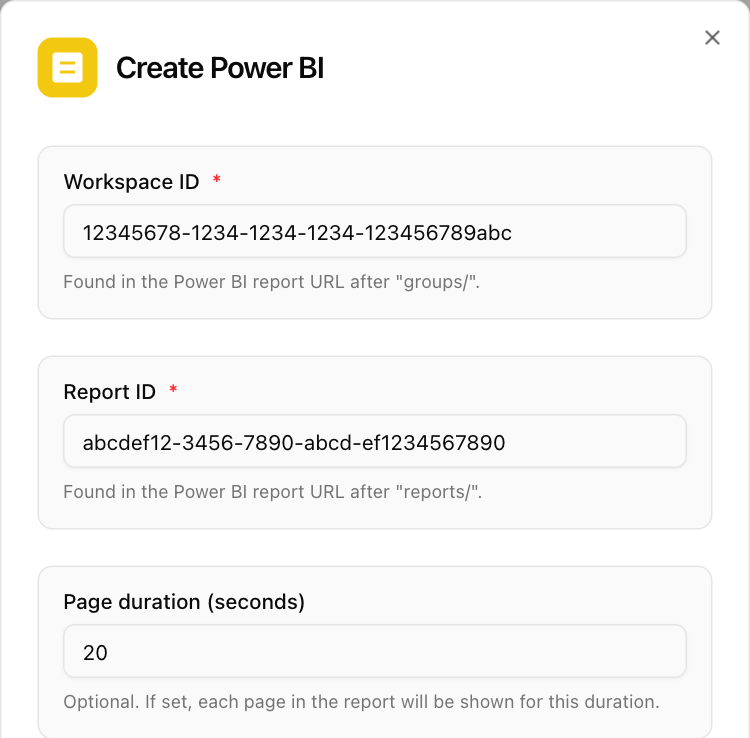
4. Choose the pages. Click Load pages, tick the pages for this screen, and set a page duration if you want them to rotate.
5. Put it on a screen. Add the asset to a playlist and deploy it to a group, like any other content.
Full instructions and troubleshooting: Showing a Power BI report on your screens
Built for Microsoft workplaces
Power BI is rarely the only Microsoft tool in the building. PiSignage fits in with the rest:
- Microsoft Entra ID single sign-on (SAML). Your team signs in to PiSignage with their Microsoft work accounts. Set up SAML SSO with Microsoft Entra ID
- SSO for collaborators. A SAML template applies your identity provider, such as Entra ID (Azure AD) or Okta, to new collaborators, so every user signs in the same way.
- Roles and permissions. Give each collaborator only the groups, locations and actions they need.
- Two-factor authentication and audit logs. Every change is logged with the user, date and IP address, and the log can be exported.
- Microsoft 365 integration. Show Outlook calendars and meeting-room schedules, OneDrive and SharePoint files, PowerPoint decks and Excel workbooks on the same screens.
- Self-hosted option. Self-Hosted Enterprise runs PiSignage on your own servers for organisations whose data must stay inside the network.
Frequently asked questions
Do people watching the screen need a Power BI licence?
No. Viewers aren't signed in, and there are no per-viewer sessions. Licensing depends only on the connection method you choose.
Does PiSignage store our company data?
No report data is copied to PiSignage. The screen loads the report live from Microsoft's Power BI service. PiSignage keeps only what it needs to connect: your Microsoft sign-in or service principal credentials, and the Workspace and Report IDs. If your policy requires everything to stay in your network, Self-Hosted Enterprise runs PiSignage on your own servers.
Can I show Power BI on a TV without a PC?
Yes. A Raspberry Pi, an Amazon Signage Stick or an Android TV runs the report. No Windows PC or browser login is needed at the screen.
Can two screens show different pages of the same report?
Yes. Add the report as two assets and pick different pages on each.
What happens when we change the report in Power BI?
Data and visual changes appear on the screen automatically. If you rename, add or remove pages, open the asset, click Load pages and pick the pages again.
What if a screen shows "Access denied" or "Report not found"?
Fix the cause, for example workspace access or a changed Report ID. The screen retries every 5 minutes and recovers on its own, with no restart needed.
Can we use our Microsoft accounts to sign in to PiSignage?
Yes. PiSignage supports SAML single sign-on with Microsoft Entra ID.
Put your dashboards where people look
Connect Power BI once, pick the pages, and every screen in the building shows the numbers that matter, live.
Try PiSignage with 2 screens free. For Self-Hosted Enterprise or a large rollout, write to sales@pisignage.com.